A Creator's Guide to the YouTube Shorts Aspect Ratio
When it comes to YouTube Shorts, there's one golden rule: the ideal aspect ratio is 9:16. Just picture your phone held upright—that tall, vertical screen is the exact space you need to fill. Nailing this format is the key to making your video look like it belongs in the Shorts feed, creating a polished, immersive experience that stops people from swiping on to the next video.
The Perfect YouTube Shorts Aspect Ratio Explained
So, what exactly is an aspect ratio? It's simply the relationship between a video's width and its height. For Shorts, the magic numbers are 9 units wide by 16 units high. This tall, skinny layout has become the default for platforms like Shorts, TikTok, and Reels because it perfectly matches the way we all naturally hold our phones.
If you try to upload a standard horizontal (16:9) video, or even a square (1:1) one, YouTube will add ugly black bars to fill the empty space. This is a dead giveaway that the content wasn't made for Shorts, and it’s often enough to make viewers lose interest and scroll away instantly.
Why This Format Dominates
There's a good reason why the 9:16 vertical format is king. In the UK, where YouTube boasts around 55 million monthly users, this layout is perfectly tailored to the 92% of 16-24-year-olds who overwhelmingly watch content on their smartphones. This mobile-first audience is the core of the Shorts viewership, and you can only grab their attention with a seamless, full-screen experience that feels native to the platform. To learn more, check out these insights into UK YouTube user habits and their impact.
Getting the ratio right is only half the battle, though. You also need the correct resolution—the actual number of pixels that make up the image. The right resolution is what makes your Short look sharp, clear, and professional, not blurry or pixelated.
Key Takeaway: The 9:16 aspect ratio isn't just a technical spec; it's your blueprint for creating Shorts that look authentic, grab attention, and play nicely with the YouTube algorithm.
To make sure your video fits the 9:16 frame perfectly, you'll want to use one of the standard resolutions. Here’s a quick breakdown of what to aim for.
Recommended Resolutions for 9:16 YouTube Shorts
This table shows the most common and recommended pixel dimensions for creating high-quality YouTube Shorts that fit the native 9:16 aspect ratio.
| Quality | Resolution (Width x Height) | Common Use Case |
|---|---|---|
| Full HD (Standard) | 1080 x 1920 pixels | This is the go-to resolution for most creators. It delivers crisp, clear quality without creating massive file sizes. |
| 4K (Ultra HD) | 2160 x 3840 pixels | If you're shooting with high-end gear, 4K gives you the best possible quality and helps future-proof your content. |
| HD (Minimum) | 720 x 1280 pixels | This is the absolute minimum you should consider. It's acceptable, but Full HD is strongly preferred for a professional look. |
While you can technically upload a 720p Short, aiming for 1080 x 1920 pixels is the best practice. It’s the sweet spot for quality and performance that looks great on any mobile screen.
Why 9:16 Is Your Key to Algorithmic Success
It’s one thing to know the technical specs of the YouTube Shorts aspect ratio, but it’s another to truly understand why it matters so much to the algorithm. Think of it this way: the Shorts algorithm has a single, obsessive goal – to keep people swiping through a seamless, totally absorbing vertical video feed. When your content fits that mould perfectly, filling the entire screen, you're playing right into its hands.
This full-screen, native format is brilliant at holding a viewer's attention. That directly boosts your watch time, which is one of the most powerful signals you can send to the algorithm. A video that’s properly formatted in 9:16 just feels right. It looks professional and keeps people watching longer.
Now, flip that around. When you upload a video with black bars on the top and bottom (a leftover from a horizontal format), it shatters the illusion. It’s an instant giveaway that the content was an afterthought, chopped from a landscape video and not made for Shorts. That tiny visual jolt is often all it takes for a viewer to lose interest and swipe away, telling the algorithm your content isn't hitting the mark.
From Landscape Mistake to Vertical Success Story
Let’s talk about a real-world case study. Consider a creator like Jake Fellman, who is famous for his 3D animated Shorts. Early in his career, like many YouTubers, he experimented with different formats. Imagine if he had taken his amazing horizontal animations and simply uploaded them to the Shorts feed. They would have been shrunk down, flanked by black bars, losing all their immersive impact. Viewers would have seen it as a lazy repurposing effort and swiped on.
Instead, Fellman leaned into the 9:16 aspect ratio from the start, designing every animation specifically for the vertical screen.
The results speak for themselves.
- The Problem (Hypothetical 16:9): If he had used repurposed 16:9 clips, his detailed animations would be too small to appreciate, leading to low watch time and engagement. Viewership would likely stall in the low thousands.
- The Solution (Native 9:16): By creating native vertical content, his Shorts fill the entire screen, pulling viewers into the world he created. This decision was a catalyst for massive growth.
- The Growth Spurt: This vertical-first strategy catapulted his channel. His Shorts regularly rack up tens of millions of views, and he has amassed over 15 million subscribers, largely driven by content perfectly formatted for the feed.
By mastering the platform's native format, Fellman sent the YouTube algorithm the strongest possible signal: his content belongs here. The system rewarded this with unprecedented reach.
This case study highlights a crucial lesson: the youtube shorts aspect ratio isn't just a friendly guideline. It's a non-negotiable part of the game. You're showing the algorithm and your audience that you get it—you’re creating content designed for how they want to watch it. Master this one simple rule, and you align your work with the very system built to make it go viral. If you want to get even deeper into what makes content perform, our guide on understanding analytics on YouTube is a great next step.
How to Format Your Videos for Perfect Shorts
Knowing the right aspect ratio for YouTube Shorts is one thing, but actually putting it into practice is where the magic happens. Whether you’re a mobile-first creator editing on the fly or someone who prefers the precision of a desktop setup, getting your project settings right from the very beginning is a non-negotiable. It’s the secret to making sure your video fills that 9:16 vertical screen perfectly, without any awkward black bars or losing half the action to bad cropping.
Honestly, the easiest way to guarantee a perfect Short is to just film vertically in the first place. Hold your phone upright, and you’re golden. This captures your footage in the native 9:16 format, which means you won't have to wrestle with a horizontal video later, trying to decide which parts of the frame to sacrifice.
Of course, sometimes you need to repurpose an existing horizontal video. That's okay—modern editing tools have your back.
Setting Up Your Project on Desktop
If you're editing on a computer with professional software, getting the dimensions right is usually a manual step. When you start a new project, you just have to tell the software you're working vertically.
- In Adobe Premiere Pro, you'll head to
File > New > Sequence. From there, jump into the settings tab, switch the editing mode to custom, and simply type in 1080 for the width and 1920 for the height. - For DaVinci Resolve users, it's just as simple. Open up your Project Settings, go to
Master Settings, and make sure your timeline resolution is set to 1080 x 1920. You might need to untick a box that says "Use vertical resolution" to unlock the fields.
Many of these desktop programs also have some clever tricks up their sleeve. Premiere Pro’s ‘Auto Reframe’ feature, for example, uses AI to analyse a horizontal clip and intelligently reframe it into a 9:16 vertical cut, doing its best to keep the main subject in the shot. If you've already got a video and just need to switch its dimensions, a free video aspect ratio converter can be a real lifesaver.
Editing on Your Mobile
This is where creating Shorts gets really fun and accessible. Mobile apps like CapCut were practically born for vertical video, so they often default to the correct 9:16 format as soon as you open them.
Pro Tip: When you’re filming on your phone, try to keep your main subject centred. It gives you a lot more wiggle room later if you need to crop or slightly reposition the clip without cutting out the most important part of the shot.
Plenty of creators use a hybrid workflow—shooting on their phone and then jumping onto a desktop for the final polish. Whatever your style, having the right software makes all the difference. If you're still searching for the perfect tool, our guide on the best software for editing videos for YouTube breaks down all the top contenders.
To give you a head start, let's take a quick look at a few popular choices that are great for creating Shorts.
Video Editing Software for Perfect YouTube Shorts
This table compares a few go-to editing tools, focusing on what they bring to the table for creating and formatting snappy 9:16 vertical videos.
| Editing Software | Platform | Key Features for Shorts | Best For |
|---|---|---|---|
| CapCut | Mobile & Desktop | Vertical templates, trending audio library, auto-captions | Quick, trend-focused mobile editing |
| Adobe Premiere Pro | Desktop | Auto Reframe, advanced colour grading, precise controls | Professional creators needing full control |
| DaVinci Resolve | Desktop | Pro-level editing and colour tools, powerful free version | Creators on a budget who want high-end features |
| InShot | Mobile | Easy-to-use interface, filters, stickers, quick exports | Beginners and social media content creators |
Ultimately, the best tool is the one that fits seamlessly into how you like to create. Whether it’s a powerhouse desktop application or a simple, intuitive mobile app, the goal is the same: to get your vision onto that vertical screen flawlessly.
Common Aspect Ratio Mistakes and How to Fix Them
Even experienced creators can get tripped up by the little details that can sink a Short's performance. Nailing the YouTube Shorts aspect ratio is the first step, but a few common slip-ups can still creep in, costing you precious views and engagement. Let's walk through these frequent errors so your content always looks sharp and professional.
The biggest mistake I see is uploading content that isn't truly vertical. If you upload a standard horizontal (16:9) or even a square (1:1) video, YouTube won't stretch it to fit the screen. Instead, it slaps on black bars to fill the void. For viewers scrolling through Shorts, this is an immediate sign that the video wasn't made for the platform, and they'll often swipe away without a second thought. That drop-off in watch time tells the algorithm your video isn't holding attention, and its reach will suffer for it.
Understanding the Safe Zones
Another classic pitfall is completely forgetting about the YouTube Shorts interface itself. Your channel name, the video title, and all the engagement buttons—like, comment, share—are overlaid directly on top of your video. If you've placed crucial text, a cool graphic, or even your main subject in these spots, they're going to get covered up.
To get around this, you have to work within the "safe zones." Think of this as the central part of the screen that will always be visible, no matter what.
Key Insight: A good rule of thumb is to treat the top 15% and the bottom 25% of your vertical frame as "no-go" areas for anything essential. Keep your key visuals and text smack-dab in the middle to make sure everyone sees them clearly.
Take a look at popular creators like the financial commentator Humphrey Yang. He's mastered this by always keeping his face and any important text overlays firmly in the centre of the frame. This simple habit guarantees that the core message is never hidden behind a "Subscribe" button.
Your Pre-Upload Checklist
To help you catch these mistakes before they go live, here’s a quick checklist to run through before you hit publish.
- Is my project set to a 9:16 aspect ratio? Pop into your editing software and confirm the project settings are 1080x1920 pixels.
- Is all my key text inside the safe zone? Give your video a final watch and picture where the like, comment, and subscribe buttons will live.
- Is my main subject always visible? Make sure the focal point of your video isn't playing hide-and-seek behind your channel name.
- Do I see any black bars? If you spot them in your preview, it's time to go back and re-crop or adjust your edit.
This handy diagram breaks down the workflow for getting your Shorts formatted correctly, whether you're editing on a computer or right from your phone.
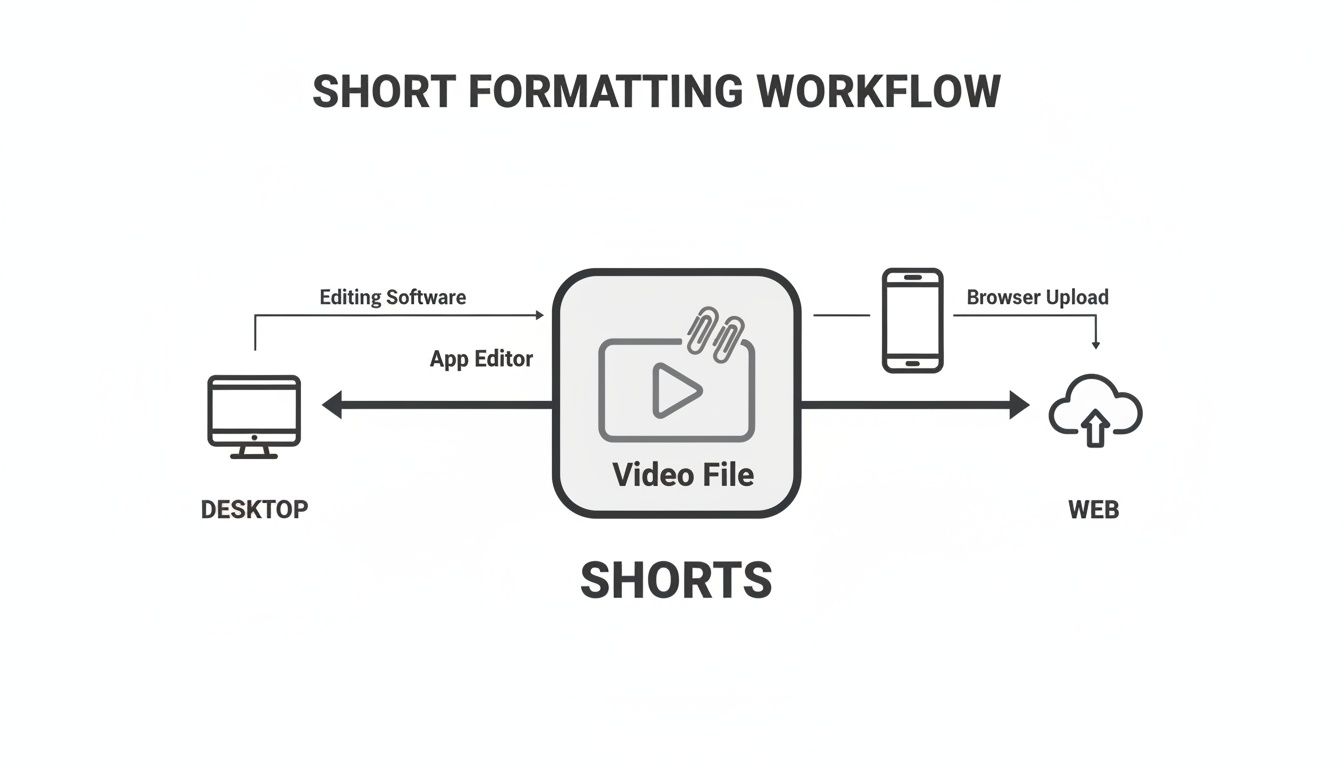
As you can see, it doesn't matter what tool you're using. The goal is always the same: export a clean, vertical video file that's perfectly optimised for the Shorts player. Running through these simple checks will make a world of difference in how professional your content looks and performs.
Optimising Your Shorts Beyond the Aspect Ratio
Getting the 9:16 aspect ratio right is your ticket to the game, but it doesn't guarantee you'll win. Real success with Shorts comes from nailing the little details that wrap up your content perfectly, turning a simple video into a serious growth engine for your channel.
One of the most overlooked details is the thumbnail. While you can't upload a custom thumbnail for the Shorts feed itself, you can choose a specific frame from your video when you upload it on your phone. This single frame is more important than you might think—it's the cover image for your Short on your channel page, in search results, and in suggested video sidebars.
Think of it as the first impression your video makes outside the endless scroll of the Shorts player. Make it count. Pick a moment that's visually gripping, full of energy, and makes people curious. Steer clear of blurry or confusing frames; you want a shot that instantly tells viewers what your video is all about.
Crafting Titles and Hashtags That Work
Once you've picked a killer frame, your next job is to write a title that packs a punch. With Shorts, titles need to be short, snappy, and grab attention immediately. Remember, it often appears as an overlay on your video, so clarity is everything.
The single most important thing to include is the #shorts hashtag. Popping this into your title or description is a direct signal to YouTube that your video is a Short, making sure it gets pushed into the right feed. The algorithm is pretty clever at spotting vertical videos under 60 seconds, but using the hashtag removes any doubt.
A well-chosen frame and a sharp title with the #shorts hashtag work hand-in-hand to get your video correctly indexed and looking its best wherever it shows up on YouTube.
This combination of the perfect YouTube Shorts aspect ratio and smart packaging has a real impact on your channel's growth and ability to make money. In the UK alone, the 9:16 format is the foundation for engagement among 55 million users, who rack up an incredible 391 billion annual views. Properly formatted and polished Shorts get more engagement, which is critical when 35% of UK channel discoveries come from the Shorts feed.
These finishing touches are essential if you want to make the most of your content. If you're looking to turn those views into revenue, our detailed article on https://www.vidito.ai/blog/youtube-shorts-monetization offers a much deeper look into the strategies that actually work.
It's also worth keeping an eye on how other platforms handle short-form vertical video, as it can give you fresh ideas for your own content strategy. For example, seeing how TikTok's content is presented using a Tiktok Story Viewer can provide useful insights. Mastering these small but vital details is what will truly set your content apart from the rest.
Your Burning Questions About Shorts Formatting Answered
Even when you've got the basics down, a few tricky questions about the YouTube Shorts aspect ratio always seem to crop up. Let's be honest, getting these details right can be the difference between a video that takes off and one that's dead on arrival. This section is your go-to reference, designed to give you quick, straight-to-the-point answers to the most common snags.
We’ll dig into the little details that trip creators up, from using wonky aspect ratios to understanding how formatting genuinely affects your shot at going viral.
Can I Get Away with a 1:1 Square Video for YouTube Shorts?
Technically, yes, you can upload a 1:1 square video, and YouTube will stick it in the Shorts player. But you really, really shouldn't. Your video won’t fill the screen; it'll just float in the middle with ugly black bars at the top and bottom. This completely shatters the immersive, full-screen vibe that makes Shorts so addictive.
Right away, this kind of formatting screams that your content wasn't made for the platform. Viewers are far more likely to swipe away in a split second, which kills your watch time and tells the algorithm to bury your video. For the best shot at success, always stick to the native 9:16 format.
What Happens if I Upload a Horizontal 16:9 Video as a Short?
If you upload a standard horizontal 16:9 video that’s under 60 seconds (and use the #shorts hashtag), YouTube will indeed categorise it as a Short. The result, however, is a mess. The platform simply plonks your landscape video into the middle of the vertical player, surrounded by massive, distracting black bars.
It shrinks your content down to a tiny letterbox, making it awkward to watch and creating a jarring experience for anyone scrolling the feed. Viewers expect full-screen vertical content, and a horizontal video is a guaranteed way to make them scroll right on by. To avoid this, you have to re-edit your video into a proper 9:16 aspect ratio before you even think about uploading.
How Do I Pick the Best Thumbnail Frame for My Short?
While you can't upload a custom thumbnail for a Short that shows up in the main Shorts feed, you do get to choose a single frame from your video when you upload on mobile. This frame is more important than you might think—it's what people see on your channel page, in search results, and in the suggested videos sidebar.
So, how do you pick a winner? As you scrub through your video, look for a moment that is:
- Clear and High-Quality: No one wants to click on a blurry mess. Find a crisp, sharp frame.
- Action-Packed or Expressive: A shot of a peak emotion, a surprising moment, or a key action is perfect for sparking curiosity.
- Visually Striking: Look for vibrant colours or a composition that tells a story in an instant.
Think of this frame as your Short's business card outside of the feed. Make it count.
A fantastic example of this is the food creator B. Dylan Hollis. He often grabs a frame of his over-the-top reaction or the weird-looking final dish, which is incredibly effective at getting people to click when they see it on his channel page.
Does the Aspect Ratio Really Affect My Chances of Going Viral?
Absolutely. It's not an exaggeration to say the YouTube Shorts aspect ratio is one of the most fundamental ingredients for going viral. The algorithm is built to serve up a seamless, hypnotising stream of vertical video. Anything that doesn't fit the 9:16 format breaks that spell.
When your video fills the entire screen, it has maximum visual impact and holds attention for longer, which directly boosts your audience retention. This sends a massive green light to the algorithm, telling it your content is a perfect fit for the Shorts shelf. An incorrect aspect ratio does the complete opposite, signalling that your video isn't optimised and drastically cutting its chances of being pushed out to a wider audience.
Ready to stop guessing and start creating viral video ideas on autopilot? Vidito uses AI to generate and validate concepts backed by real-time data from YouTube and Google Trends. Know which ideas will succeed before you even press record. Get started for free on vidito.ai and find your next hit video in minutes.