12 Best Software for Editing Videos for YouTube (2025 Guide)
Choosing Your Creative Toolkit: Finding the Right Editor for Your YouTube Channel
The success of your YouTube channel depends on two key elements: compelling ideas and polished, engaging edits. Yet, navigating the crowded market to find the best software for editing videos for YouTube can feel like an overwhelming first step. Whether you are a beginner launching your first vlog or an established creator aiming for a more cinematic feel, the right editing tool is the cornerstone of your production workflow, directly impacting both quality and efficiency.
This guide is designed to cut through the noise. We will break down the top video editing platforms, analysing them based on the features that matter most to creators like you. We will look at everything from user interface and learning curve to advanced capabilities like colour grading and audio mixing. You will gain a clear understanding of which software aligns with your specific needs, budget, and creative ambitions.
Throughout this resource, we will provide direct links and screenshots for each option, ensuring you can evaluate them easily. We'll explore why industry titans like MKBHD rely on the comprehensive power of Adobe Premiere Pro for their high-production tech reviews, and how emerging creators leverage the accessibility of tools like CapCut to produce viral Shorts quickly. Our goal is to provide a practical, comprehensive comparison, helping you select the perfect software to not only bring your vision to life but also streamline your content creation process. By choosing the right toolkit, you can spend less time fighting with software and more time creating content that captivates your audience.
1. Adobe Premiere Pro: The Professional's Choice
Adobe Premiere Pro is the undisputed industry standard, offering a robust, timeline-based editing system that gives creators unparalleled control over every aspect of their production. It's the go-to choice for YouTubers who refuse to compromise on quality and need a tool that can scale with their channel's ambition. Its deep integration with other Adobe Creative Cloud apps like After Effects, Photoshop, and Audition creates a seamless workflow, making it some of the best software for editing videos for YouTube when complex graphics or professional audio mixing are required.
Its standout features include the Lumetri Colour panel for cinematic-grade colour correction, Essential Graphics for creating and saving custom motion graphics templates, and AI-powered tools like Auto Reframe, which intelligently adjusts footage for different aspect ratios like vertical shorts. Top tech reviewer MKBHD famously uses Premiere Pro to achieve his signature clean, high-production value look. His seamless integration of custom graphics and crisp multi-camera edits is a prime example of what's possible with a professional-grade tool.
Key Details & Use Case
- Ideal User: Established creators, content publishers, and agencies who need maximum creative control and a professional workflow.
- Speed-of-Learning: Moderate to difficult. Newcomers should expect to dedicate time to tutorials.
- Workflow Tip: Plan your motion graphics and lower-thirds in an ideation tool like Vidito. Create templates in After Effects and import them into Premiere Pro using the Essential Graphics panel. This saves enormous amounts of time, allowing you to drag-and-drop branded assets onto your timeline for each new video, ensuring consistency.
- Pricing: Subscription-based, available through Adobe Creative Cloud from £19.97/month.
2. Blackmagic Design DaVinci Resolve / Resolve Studio
DaVinci Resolve has disrupted the video editing landscape by offering a Hollywood-calibre post-production suite for free. It uniquely integrates editing, world-class colour grading, visual effects (Fusion), and professional audio (Fairlight) into a single application. For creators seeking the best software for editing videos for YouTube without a recurring subscription, Resolve’s free version is astonishingly powerful, providing tools that often surpass paid alternatives.

Its "Cut" page is designed for speed, perfect for YouTubers who need to assemble and trim clips quickly. The legendary colour grading tools allow creators to achieve a cinematic look that stands out, while the built-in Fusion and Fairlight pages handle complex motion graphics and audio sweetening without ever leaving the programme. A case study in its power is creator Casey Faris, who built his entire channel around teaching filmmakers how to use Resolve, showcasing its capability to produce everything from simple vlogs to complex visual effects shots.
Key Details & Use Case
- Ideal User: Budget-conscious beginners to advanced creators who want an all-in-one powerhouse and are willing to learn a professional workflow. Especially popular with filmmakers and creators focused on cinematic visuals.
- Speed-of-Learning: Moderate to difficult. The different "pages" can be intimidating, but focusing on just the Edit and Cut pages initially makes it more approachable.
- Workflow Tip: Before starting an edit, organise all your planned shots and graphics in an ideation tool like Vidito. In Resolve, use the "Power Bins" feature to store recurring assets like intro animations, logos, and lower-thirds. This makes them accessible across all projects, creating a drag-and-drop system that drastically speeds up your editing process and maintains brand consistency.
- Pricing: Free version is incredibly capable. A lifetime licence for DaVinci Resolve Studio is available for a one-time fee of £245.
Visit Blackmagic Design DaVinci Resolve
3. Apple Final Cut Pro: The Mac User's Powerhouse
For creators embedded in the Apple ecosystem, Final Cut Pro offers an incredibly powerful and streamlined editing experience. Its tight integration with macOS and optimisation for Apple silicon results in blazing-fast performance, particularly with high-resolution formats like ProRes. The software is famous for its Magnetic Timeline, which automatically ripples edits and prevents clip collisions, allowing YouTubers to experiment with pacing and structure far more fluidly than on traditional track-based editors. This makes it some of the best software for editing videos for YouTube for those who prioritise speed and efficiency on a Mac.
Final Cut Pro boasts a suite of AI-assisted tools like Enhance Light & Color for quick visual improvements and Smooth Slo-Mo for creating silky-smooth slow-motion effects. Many top creators, including iJustine, have built their empires using Final Cut Pro, demonstrating its capability for handling fast-paced vlogs, detailed tech reviews, and high-quality productions. Her fast cutting style is a perfect match for the Magnetic Timeline's efficiency. While its plugin ecosystem is smaller than Adobe's, its performance and user-friendly approach make it a top contender.
Key Details & Use Case
- Ideal User: Mac-based creators, from beginners to professionals, who value performance, workflow speed, and ecosystem integration.
- Speed-of-Learning: Easy to moderate. The Magnetic Timeline can take some getting used to for those experienced with other editors, but it's very intuitive for newcomers.
- Workflow Tip: After developing your video concepts in a tool like Vidito, use Final Cut Pro's keyword collections and tagging features to meticulously organise your footage before you even start editing. Tag clips with metadata like "A-roll," "B-roll," or "Slo-Mo." This organisational step up-front allows you to leverage the Magnetic Timeline's speed without getting lost in your media.
- Pricing: A one-time purchase of £299.99 for the Mac version, which includes all future updates. The iPad version is subscription-based.
4. CyberLink PowerDirector 365: The Creator-Friendly Powerhouse
CyberLink PowerDirector 365 strikes an impressive balance between user-friendly design and powerful features, positioning itself as a top contender for YouTubers who want to produce polished content without a steep learning curve. It’s particularly strong for creators who need to work quickly, offering a massive library of ready-made effects, titles, and transitions that can be customised and dropped directly into a project. This template-driven workflow makes it some of the best software for editing videos for YouTube for those prioritising speed and consistency.
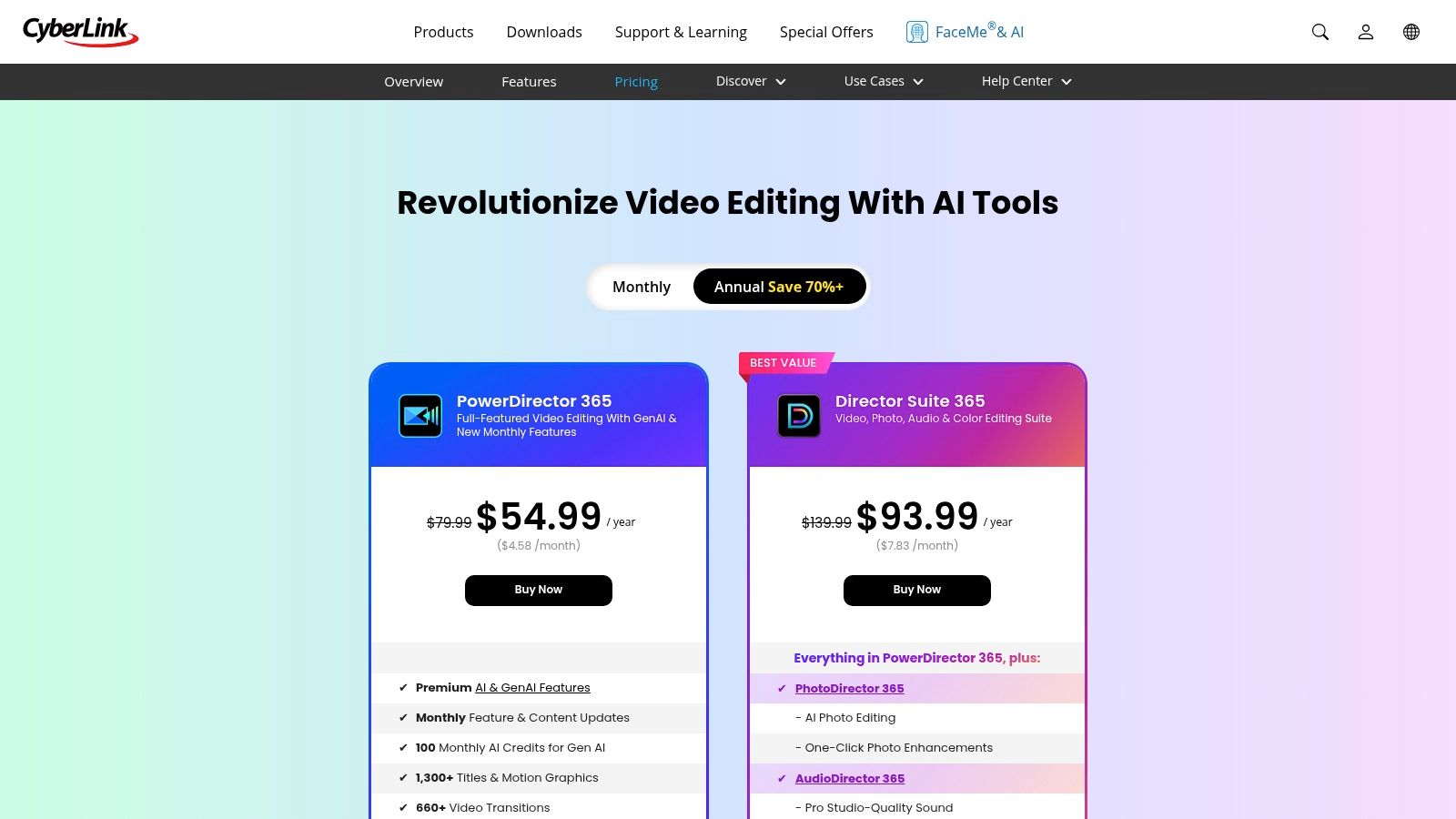
Its growing suite of AI-powered tools, such as auto-captioning, sky replacement, and object detection, automates time-consuming tasks, allowing creators to focus more on the creative aspects of their storytelling. For a practical example, a travel vlogger could use the AI Sky Replacement tool to instantly turn a grey, overcast shot of a landmark into a vibrant scene with a dramatic sunset, saving hours of complex masking. The frequent updates and access to stock media provide a comprehensive, evolving toolkit.
Key Details & Use Case
- Ideal User: New and growing YouTubers, social media managers, and solo creators who need an efficient, all-in-one editor with a low barrier to entry.
- Speed-of-Learning: Easy to moderate. Most users can start producing quality videos within a few hours.
- Workflow Tip: Before filming, use an ideation tool like Vidito to storyboard your video and identify key moments for text overlays or effects. In PowerDirector, leverage the Title Designer to create branded templates for your intro, lower-thirds, and call-to-action screens. Save these in your library to quickly drag and drop them into future projects, ensuring a consistent and professional look across your channel.
- Pricing: Subscription plans start from £4.33/month for the PowerDirector 365 plan.
Visit CyberLink PowerDirector 365
5. Wondershare Filmora: The Creator's Fast-Track
Wondershare Filmora strikes an impressive balance between user-friendliness and powerful features, making it a favourite among YouTube creators who prioritise speed and a polished aesthetic without a steep learning curve. It’s designed to get you from raw footage to a finished, shareable video quickly, thanks to a vast library of drag-and-drop effects, transitions, and title templates. This makes it some of the best software for editing videos for YouTube for those who want to produce consistent, high-quality content without getting bogged down in technical complexities.

Filmora’s strength lies in its AI-driven smart tools that simplify common but time-consuming tasks. For instance, a commentary YouTuber can use the Silence Detection feature to automatically identify and cut out pauses in their voiceover, trimming a 20-minute recording down to a tight, engaging 15-minute track in a single click. This is a huge time-saver. Its cross-platform support means you can start a project on your Mac and finish it on your Windows PC, offering flexibility that busy creators appreciate.
Key Details & Use Case
- Ideal User: Beginner to intermediate YouTubers, educators, and vloggers who need an intuitive tool to produce polished videos quickly.
- Speed-of-Learning: Easy. The clean interface and template-driven approach make it one of the fastest editors to learn.
- Workflow Tip: Before shooting, use an ideation tool like Vidito to plan your video structure and shot list. In Filmora, save your most-used title styles, colour grading presets, and branded end-screens as custom templates. This creates a repeatable workflow where you can simply drop in new footage and apply your channel’s unique look in minutes, perfect for maintaining a consistent upload schedule.
- Pricing: Flexible options including an Annual Plan from £39.99/year or a Perpetual Plan for a one-time fee. A trial is available but exports with a watermark.
6. Microsoft Clipchamp: The Accessible Web-Based Editor
Microsoft Clipchamp offers a surprisingly capable browser-based editing experience, making it an excellent choice for creators who need to produce quick, clean edits without installing hefty software. Its integration with Microsoft 365 and OneDrive positions it as a convenient tool for Windows users, allowing for seamless cloud-based workflows. For YouTubers focused on straightforward content like tutorials, vlogs, or social media cuts, Clipchamp provides an accessible platform that still delivers polished results, including 4K exports.

The platform shines with its template-driven approach, offering pre-made formats for YouTube intros, outros, and Shorts. A practical example is a small business owner creating a quick promotional video. They can select a "Product Demo" template, replace the placeholder clips with their own footage, add their logo using the brand kit, and have a shareable video ready in under 30 minutes. This speed makes it one of the best software for editing videos for YouTube when convenience is the top priority.
Key Details & Use Case
- Ideal User: Beginners, educators, and casual creators needing a fast, no-install solution for standard YouTube content.
- Speed-of-Learning: Very easy. The intuitive interface allows new users to start creating polished videos within minutes.
- Workflow Tip: For channels producing weekly tutorials, use a Vidito ideation brief to outline your screen recordings and voiceover script. In Clipchamp, set up a branded template with your intro, outro, and lower-third graphics using the brand kit. This allows you to simply drop in your new screen recordings and voiceover files each week, massively reducing editing time.
- Pricing: Free plan available with watermarks. The Premium plan is included with Microsoft 365 Personal/Family subscriptions (from £5.99/month) or as a standalone subscription.
7. Movavi Video Editor / Video Suite: The Accessible All-in-One
Movavi Video Editor positions itself as a powerful, user-friendly solution for creators who need to produce quality content quickly without a steep learning curve. It’s particularly well-suited for YouTubers focused on tutorials, vlogs, and gameplay, where speed and efficiency are paramount. The optional Video Suite bundle expands its utility significantly by including a robust screen recorder and file converter, making it some of the best software for editing videos for YouTube for creators who produce screen-record-based content.
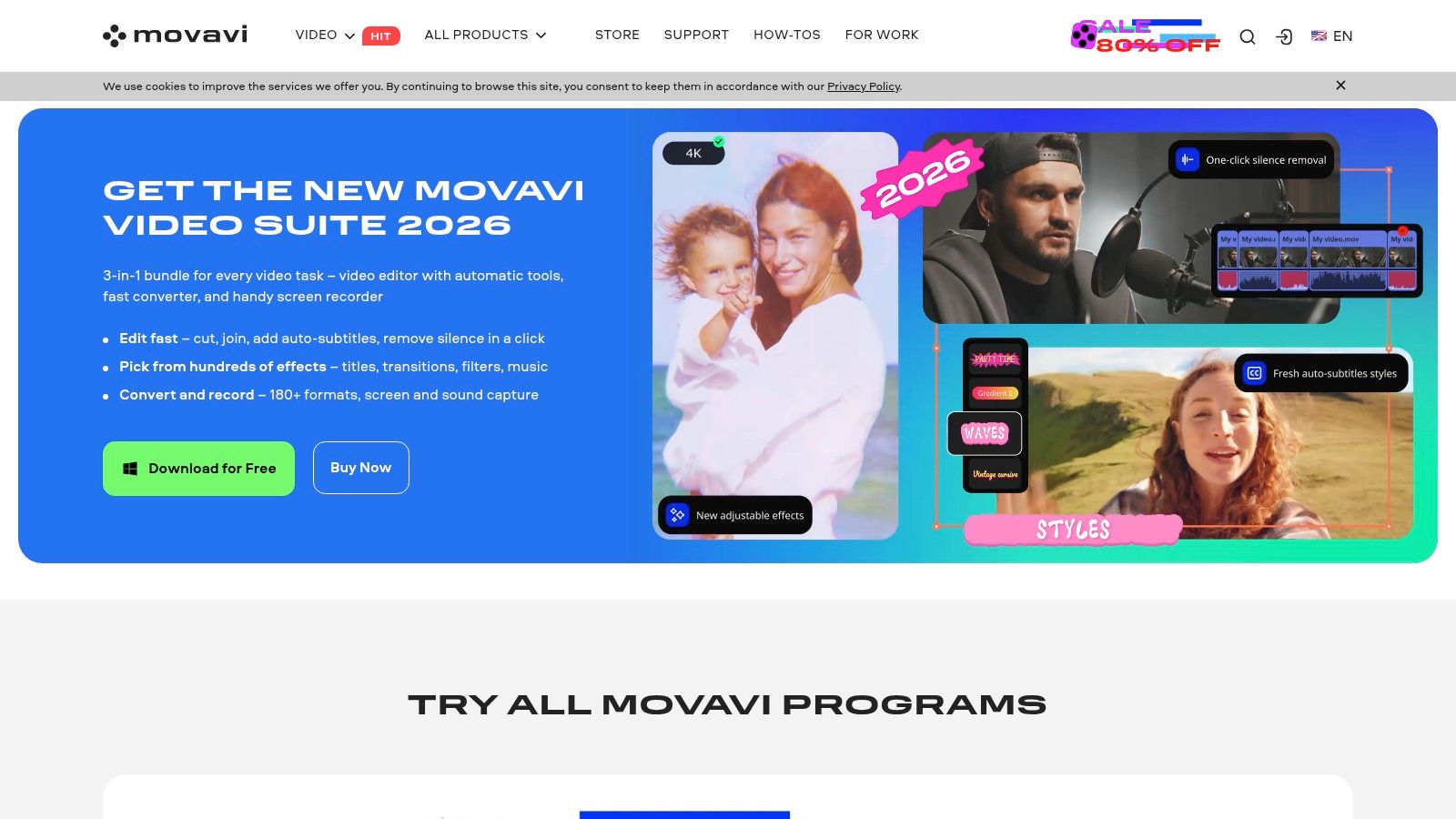
Its strength lies in its simplicity and AI-driven tools that deliver fast results. A great practical example is for a gaming channel. A streamer can record a long session, use Movavi's tools to quickly cut out the boring parts, apply the AI Noise Removal to clean up microphone audio, and use the auto-subtitling feature to create accessible highlights for a compilation video. This entire workflow is streamlined within one application, saving significant time.
Key Details & Use Case
- Ideal User: New and emerging creators, educators, and gamers who need an all-in-one tool for recording and editing without a complex workflow.
- Speed-of-Learning: Easy. Most users can produce their first video within a couple of hours.
- Workflow Tip: Before recording, use an ideation tool like Vidito to structure your tutorial or vlog. Use Movavi’s Screen Recorder (part of the Video Suite) to capture your footage. During the edit, apply the AI Noise Removal tool immediately to clean up your audio, then use the pre-made title packs for consistent, professional-looking intros and callouts.
- Pricing: Available with a one-time purchase (from £47.95) or subscription model. Frequent promotional pricing offers excellent value.
8. MAGIX VEGAS Pro: The Speedy Workflow Specialist
VEGAS Pro has a long-standing reputation in the YouTube community as a fast, intuitive editor that excels at timeline-based cutting and arrangement. Its fluid, drag-and-drop workflow makes it incredibly efficient for creators who need to assemble talking-head videos, gameplay montages, or reviews quickly without getting bogged down in complex menus. The platform's deep integration with SOUND FORGE Pro gives it a significant edge in audio editing, making it some of the best software for editing videos for YouTube for creators who prioritise crisp, professional-sounding audio.
Many commentary and reaction channels have historically favoured VEGAS Pro for its quick "J-cut" and "L-cut" capabilities directly on the timeline, which makes dialogue editing feel more natural and fluid. The software also offers modern features like AI-powered tools and advanced motion tracking. Its key differentiator is the flexible purchasing model, often featuring heavily discounted perpetual licences, a major draw for creators wary of subscriptions.
Key Details & Use Case
- Ideal User: Windows-based creators, particularly in gaming or vlogging, who value a fast editing timeline and powerful built-in audio tools.
- Speed-of-Learning: Moderate. The interface is more intuitive than Premiere Pro for basic cuts but has depth that requires time to master.
- Workflow Tip: Before starting, use a tool like Vidito to batch-process and organise all your A-roll and B-roll clips. In VEGAS, leverage the nested timelines (projects within projects) feature. Create a master project for your main edit and separate nested projects for complex segments like intros or sponsored spots. This keeps your main timeline clean and makes it easy to reuse assets across different videos.
- Pricing: Available via subscription (from £10.99/month) or with perpetual licences, which are frequently on sale.
9. Apple iMovie: The Perfect Free Starting Point
For anyone entering the YouTube space within the Apple ecosystem, iMovie is an unbeatable starting point. Included for free on every Mac, iPhone, and iPad, it strips away the complexity of professional software, focusing instead on an intuitive, drag-and-drop interface that makes assembling your first video incredibly straightforward. It's a surprisingly capable tool, offering essential features like 4K support, green-screen effects, and picture-in-picture, making it some of the best software for editing videos for YouTube for beginners.
Its standout features, Storyboards and Magic Movie, act as creative guides. A family vlogger, for example, could use the "Day in the Life" Storyboard template, which provides a shot list and placeholders. They can then simply drop their iPhone clips into the corresponding slots, and iMovie automatically adds titles and transitions, creating a polished video in minutes. This guided approach is invaluable for new creators.
Key Details & Use Case
- Ideal User: New YouTubers, students, and casual creators using Apple devices who need a simple, no-cost editor to learn the fundamentals.
- Speed-of-Learning: Very easy. Most users can produce their first video within an hour.
- Workflow Tip: Use Vidito to brainstorm a simple, structured video concept like a "Top 5" list. Shoot your clips on your iPhone and use iMovie's Storyboards feature to quickly arrange them into the correct sequence. This templated approach removes the guesswork and helps you publish your first videos faster, building momentum for your new channel.
- Pricing: Completely free with the purchase of an Apple device.
10. Adobe Premiere Elements: Guided Editing for Aspiring Creators
For creators seeking Adobe’s powerful editing technology without the complexity or subscription model of Premiere Pro, Premiere Elements offers a compelling alternative. It is designed specifically for hobbyists and emerging YouTubers who want to produce polished videos quickly. The software’s core strength lies in its "Guided Edits," which provide step-by-step instructions for creating popular effects like double exposures, animated overlays, and time-lapses, making it some of the best software for editing videos for YouTube for those still learning the craft.
A practical example is a user wanting to create a dynamic travel montage. They could use the "Animated Social Post" Guided Edit, which walks them through selecting clips, adding motion text, and exporting the final video with dimensions perfectly optimised for a YouTube Short or Instagram Reel. It teaches professional techniques in a simplified, step-by-step manner.
Key Details & Use Case
- Ideal User: Beginner YouTubers, family vloggers, and hobbyists who want automated features and guided tutorials without a monthly subscription.
- Speed-of-Learning: Easy. The Guided Edits feature is specifically designed to teach users as they create.
- Workflow Tip: Before importing footage, use an ideation tool like Vidito to structure your video's narrative and shot list. Once inside Premiere Elements, use the "Quick" mode for fast assembly, then switch to the "Expert" mode to apply specific Guided Edits for more dynamic B-roll or introductions, streamlining your path from concept to final export.
- Pricing: One-time purchase of a term licence (e.g., for three years), starting from £86.56. Often available in a bundle with Photoshop Elements.
11. CapCut: The Social Media Powerhouse
CapCut has exploded in popularity, transitioning from a mobile-first editor for TikTok to a surprisingly capable cross-platform tool for YouTube creators. Its primary strength lies in speed and simplicity, making it a fantastic choice for producing YouTube Shorts and other short-form social content. The platform is packed with AI-driven features like auto-captions, script-to-video generation, and an enormous, trend-driven library of templates, effects, and sounds that simplify the creation process.
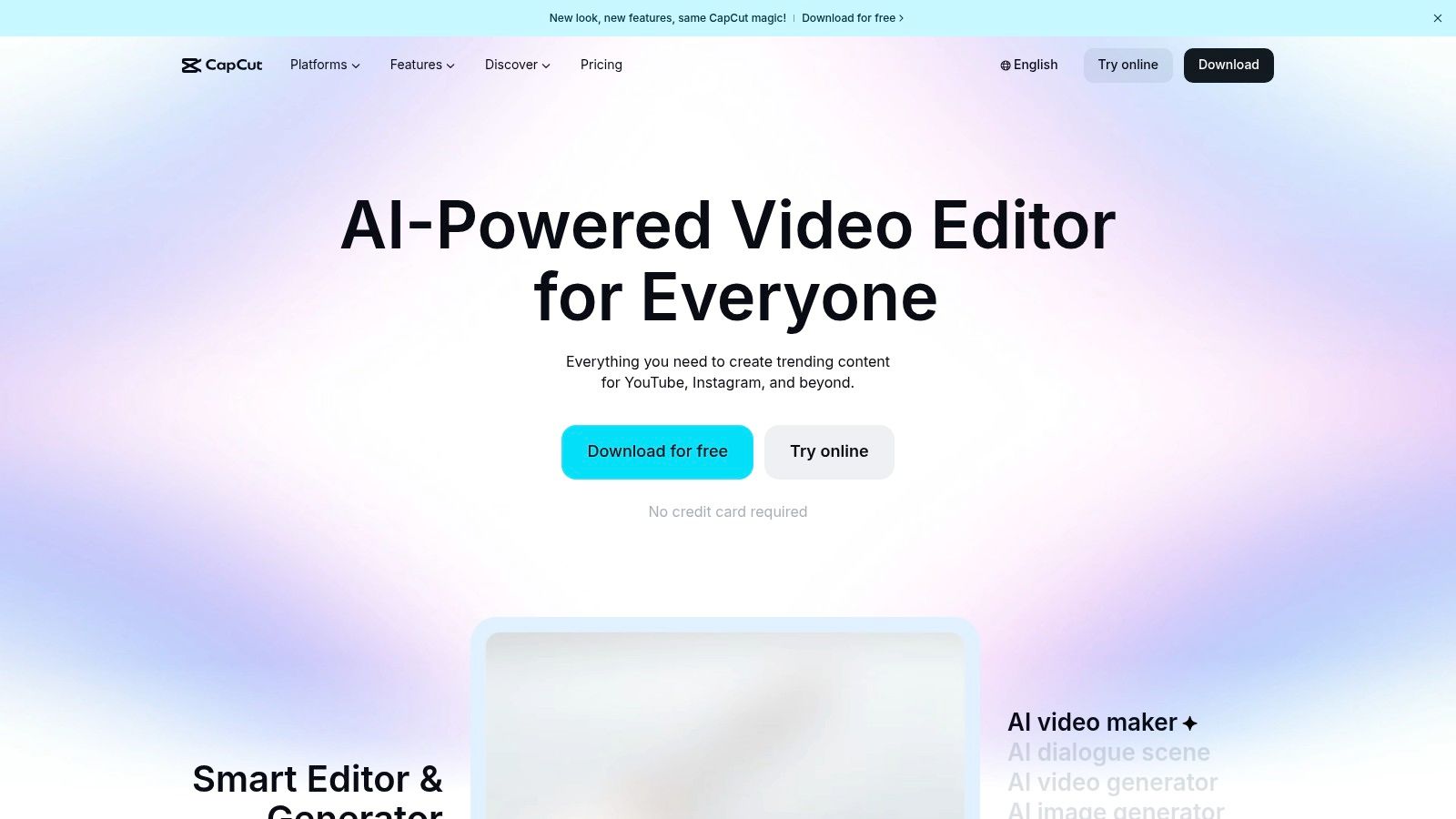
Countless Shorts creators leverage CapCut's "Auto Captions" feature to generate dynamic, word-by-word subtitles in popular styles seen on channels like MrBeast. A user can record a 60-second clip, upload it to CapCut, and have perfectly timed, animated captions ready to export in under five minutes. This speed and trend-awareness make it arguably the best software for editing videos for YouTube Shorts.
Key Details & Use Case
- Ideal User: Creators focused on YouTube Shorts, TikTok, and Reels who need to produce trend-based content quickly.
- Speed-of-Learning: Easy. The template-based workflow and simple UI are accessible to absolute beginners.
- Workflow Tip: Use Vidito to script a series of YouTube Shorts ideas. Record all your footage in one session, then use the CapCut desktop app to quickly apply templates, auto-captions, and trending audio. Ensuring your video adheres to the correct YouTube Shorts aspect ratio is crucial, and CapCut’s built-in formatting makes this effortless.
- Pricing: Free version available with watermarks and limited features. Pro plans vary by platform, starting from around £7.99/month, but users should check terms as they can change.
12. YouTube Creator resources (Creator Academy / Help): Your Official Playbook
While not a video editor itself, YouTube's own Creator resources hub is an indispensable companion to any editing software. Think of it as the official instruction manual for the platform. It provides free, direct-from-the-source guidance on everything from editing best practices for Shorts and long-form content to understanding the algorithm and monetization policies. For YouTubers, aligning your creative edits with platform expectations is crucial, making this the best software for editing videos for YouTube in a strategic sense.
For a practical example, a creator planning a new series on "Fair Use" can consult the Creator Academy's detailed guides on the topic. This ensures that their editing choices—like how long they show a clip from another source—are compliant with YouTube's policies, preventing potential copyright strikes down the line. After editing, to further enhance your video's reach, especially for global audiences or those with hearing impairments, you can use a YouTube video to text converter to create accurate transcripts and subtitles.
Key Details & Use Case
- Ideal User: Every YouTube creator, from absolute beginners to established channels, who wants to ensure their content strategy is aligned with platform best practices.
- Speed-of-Learning: Easy. The content is designed to be accessible and is organised by topic for quick reference.
- Workflow Tip: Before starting a new video series in an ideation tool like Vidito, check the Creator resources for any recent updates on that format (e.g., new Shorts features or Premiere best practices). This ensures your entire production plan is optimised from the start. Utilising this knowledge is a key step in learning how to get more views on your videos.
- Pricing: Completely free.
Visit YouTube Creator resources
Top 12 YouTube Video Editors — Feature Comparison
| Tool | Core features ✨ | UX / Quality ★ | Value & Price 💰 | Best for 👥 | Standout 🏆 |
|---|---|---|---|---|---|
| Adobe Premiere Pro | Text‑based editing, multi‑cam, tight CC integrations ✨ | ★★★★★ | 💰 Subscription (premium) | 👥 Pro creators & studios | 🏆 Industry‑standard ecosystem |
| Blackmagic DaVinci Resolve / Studio | Editing + high‑end color, Fusion VFX, Fairlight audio ✨ | ★★★★☆ | 💰 Free core; Studio one‑time upgrade | 👥 Creators needing pro color (budget→pro) | 🏆 Best free pro‑grade color tools |
| Apple Final Cut Pro | Magnetic Timeline, ProRes, Apple device handoff ✨ | ★★★★★ | 💰 One‑time (Mac only) | 👥 Mac/iPad creators prioritising speed | 🏆 Optimised Apple silicon performance |
| CyberLink PowerDirector 365 | Generative AI, templates, large stock library ✨ | ★★★★ | 💰 Affordable subscription; add‑ons for stock | 👥 Beginners & social/weekly publishers | 🏆 Template‑driven fast social edits |
| Wondershare Filmora | Templates, AI background removal, asset marketplace ✨ | ★★★★ | 💰 Competitive annual/perpetual; trial watermark | 👥 New creators & quick polishers | 🏆 Very beginner‑friendly workflow |
| Microsoft Clipchamp | Web templates, OneDrive sync, cloud saves ✨ | ★★★☆ | 💰 Free/basic; premium via Microsoft 365 | 👥 Casual creators & Microsoft users | 🏆 Easy web access + 365 bundling |
| Movavi Video Editor / Suite | One‑click fixes, auto‑subtitles, optional recorder ✨ | ★★★★ | 💰 Frequent promos; value bundles | 👥 Solo creators, tutorials & screen recordings | 🏆 Quick results with bundled tools |
| MAGIX VEGAS Pro | Fast timeline, motion tracking, SOUND FORGE audio ✨ | ★★★★ | 💰 Perpetual or subscription; sale deals | 👥 Windows editors focused on speed & audio | 🏆 Strong audio workflow integration |
| Apple iMovie | Storyboards, Magic Movie, green‑screen tools ✨ | ★★★★★ | 💰 Free on macOS/iOS/iPadOS | 👥 Absolute beginners & mobile creators | 🏆 Free, simple on‑ramp to Final Cut |
| Adobe Premiere Elements | Guided edits, automated cut tools, easy exports ✨ | ★★★ | 💰 One‑time term licence (non‑subs) | 👥 Hobbyists wanting Adobe-style simplicity | 🏆 Guided workflows without subscription |
| CapCut | Auto captions, reframing, script‑to‑video & templates ✨ | ★★★★ | 💰 Free tier; pro tiers vary by platform | 👥 Shorts & mobile‑first creators | 🏆 Massive template ecosystem for social |
| YouTube Creator resources | Tutorials, policy updates, Shorts & monetization guides ✨ | ★★★★ | 💰 Free | 👥 All creators seeking platform guidance | 🏆 Official, platform‑specific learning & policy info |
From Idea to Published: Selecting Your Perfect YouTube Workflow
Navigating the landscape of video editing software can feel overwhelming, but as we've explored, the perfect tool for you is rarely the most expensive or complex one. Instead, it’s the software that aligns with your current skill level, budget, operating system, and creative ambitions. Finding the best software for editing videos for YouTube is less about a single definitive answer and more about discovering your ideal creative partner.
We've seen that free, browser-based tools like Clipchamp and CapCut offer an incredibly accessible entry point, perfect for creators focused on speed and simplicity for Shorts or straightforward vlogs. For those taking their first serious steps, options like Filmora and Movavi Video Editor provide a fantastic balance of user-friendly interfaces and surprisingly powerful features, allowing you to create polished content without a steep learning curve.
Making the Right Choice for Your Channel's Future
Your decision should be a strategic one, based on where your channel is today and where you want it to be tomorrow. Here’s a quick recap to guide your selection process:
- For the Absolute Beginner: If you're on a Mac, Apple iMovie is the undisputed starting point. For Windows users, Clipchamp provides a simple, built-in solution for basic edits. These tools remove technical barriers, letting you focus purely on storytelling.
- For the Ambitious Learner: DaVinci Resolve stands out as a game-changer. Its free version delivers professional-grade colour correction, audio post-production, and editing capabilities that rival paid industry standards. Committing to its learning curve is an investment that can serve you for your entire YouTube career.
- For the Growing Creator: When you're ready to invest in efficiency and advanced features, Final Cut Pro (for Mac users) and Adobe Premiere Pro offer unparalleled creative control and integration with wider ecosystems. These are the tools used by top creators like MKBHD and Peter McKinnon for a reason: they are robust, reliable, and built for professional workflows.
- For the Niche Specialist: Don't overlook specialised software like CyberLink PowerDirector 365 for its AI-powered features that can dramatically speed up editing, or VEGAS Pro for its unique audio tools and fast rendering, which are ideal for music-focused or effects-heavy content.
Beyond the Timeline: Building a Sustainable Workflow
Remember, the editing software is just one cog in your content creation machine. The most successful YouTubers understand that efficiency is key to consistency. A brilliant idea, poorly executed, will fall flat, while a simple idea, edited beautifully, can go viral. This is why pairing your chosen editor with a robust ideation tool is so critical.
Starting your process with a platform like Vidito to analyse trends and validate content ideas before you even hit record provides a data-driven foundation. This ensures you're not just creating content, but creating content your audience is actively searching for. Once you have a validated concept, you can move into your chosen editor with the confidence that your hard work has a higher chance of success. Once you've selected your video editing software, it's essential to consider how to further optimize your video creation workflow to save time and increase output without sacrificing quality.
Ultimately, the journey from a raw concept to a published YouTube video is a creative process unique to you. Don't be afraid to download the free trials, experiment with different interfaces, and see which one feels intuitive. The "best" software is the one that gets out of your way and lets your creative vision come to life. Find your fit, build your workflow, and start sharing your stories with the world.
Ready to stop guessing and start creating videos you know your audience will love? Vidito analyses millions of successful videos to give you data-backed ideas, titles, and scripts tailored to your niche. Pair the perfect editor from this list with the powerful insights from Vidito to build a content strategy that drives real growth.