How to change youtube username and rebrand your channel
Thinking about changing your YouTube username can feel a bit like untangling a knot. You've got terms like 'channel name', '@handle', and 'Google Account' all mixed up, and it’s not always clear where to start. But getting this right is more than just a cosmetic tweak; it's a core part of your channel's identity and can genuinely affect how people find and remember you.
Your Guide to a New YouTube Identity
Does your current YouTube name feel like a relic from a past life? So many creators start with one name only to realise later that it doesn't fit their content anymore. Maybe it's an old inside joke or something you picked years ago that just doesn't represent the polished creator you are today.
Understanding the moving parts of your YouTube identity is the first crucial step towards a rebrand that actually works. This is especially true in a busy space. In the UK alone, you're competing for attention among 54.8 million other users. A smart, memorable name can be the difference between getting lost in the crowd and standing out.
Channel Name vs Handle vs Google Account
Before you dive in and start changing things, it’s vital to know precisely what you’re updating. Your YouTube presence is defined by three key pieces, and they each have a distinct job. Getting them aligned from the get-go is a massive advantage, and if you're just starting out, our guide on how to start a YouTube channel can set you on the right path.
Here's a quick breakdown to clear up the confusion:
YouTube Name vs Handle vs Google Account
| Identifier | What It Is | Where It's Seen | Can You Change It? |
|---|---|---|---|
| Channel Name | The official title of your channel. This is your main brand name. | On your channel page, under your videos, and in search results. | Yes, easily. You can change it twice every 14 days. |
| Handle (@handle) | Your unique ID on YouTube, starting with the '@' symbol. | In your channel URL (youtube.com/@handle), mentions, and comments. |
Yes, easily. You can also change this twice every 14 days. |
| Google Account Name | The name tied to your entire Google profile (Gmail, Drive, etc.). | Primarily within your Google account settings; not public on YouTube. | Yes, but it's separate from your YouTube channel identity. |
Essentially, your Channel Name is what people call you, and your Handle is how people find or tag you. Your Google Account Name works behind the scenes and, thankfully, is no longer tied directly to what your viewers see.
This separation gives you a ton of flexibility. You can have a professional, branded channel name while keeping your personal Google Account name completely private.
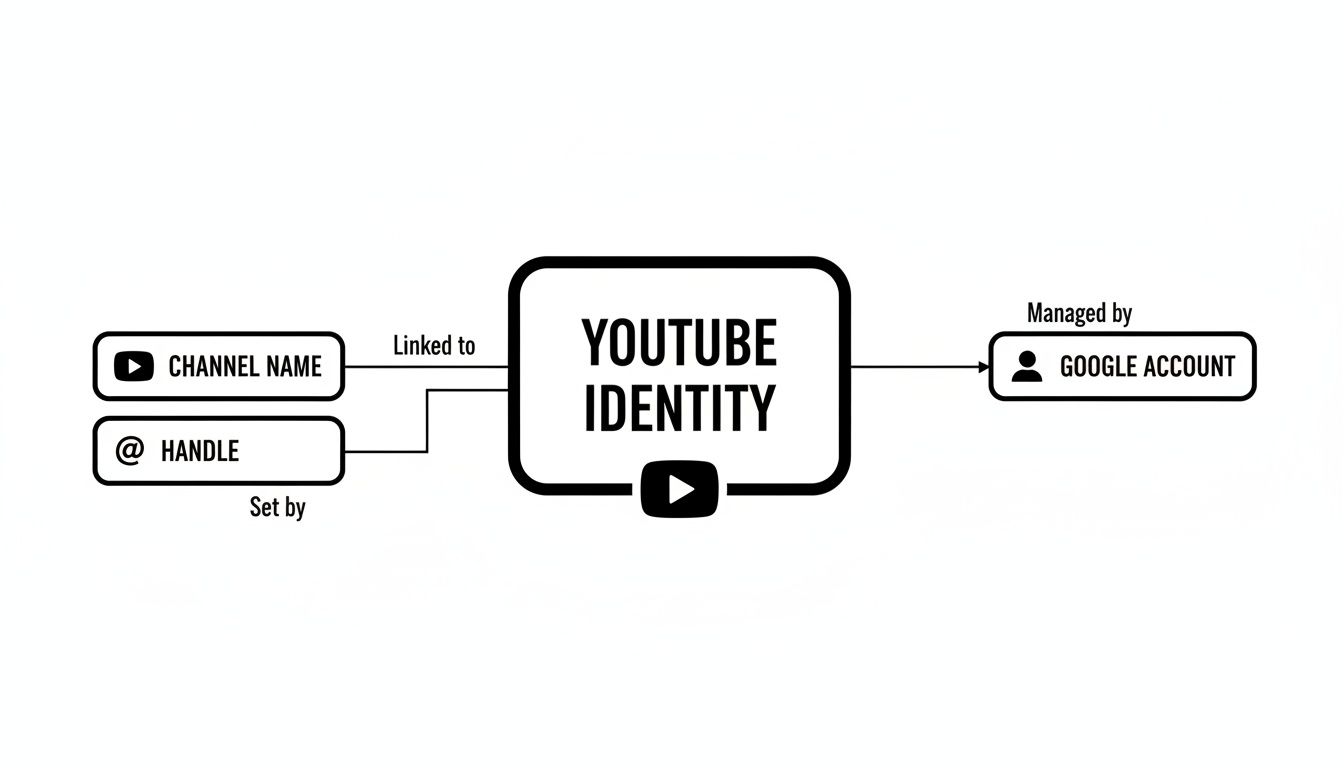
As the diagram shows, your Channel Name and Handle are the public-facing elements your audience interacts with. The Google Account is the foundation, but it stays in the background.
A great case study is the popular YouTuber Jenna Marbles. She started her channel under that pseudonym, which became a massive brand. Her real name is Jenna Mourey. Her YouTube Channel Name ('Jenna Marbles') and Handle (
@JennaMarbles) created a distinct public identity, while her personal Google Account could remain separate and private. This allowed her to build a brand without tying it directly to her personal legal name.
How to Change Your YouTube Name on a Desktop
Changing your YouTube channel name and handle is thankfully a pretty straightforward job, and you can do it all from the comfort of your desktop within YouTube Studio. If you're a creator, this is your command centre, so getting comfortable with it makes any future tweaks—like a full rebrand—much less daunting.
Let's walk through it with a real-world example. Say you started a cooking channel called 'Tim's Kitchen Adventures'. It was great for a while, but now you've shifted from simple home recipes to high-end international cuisine. The old name just doesn't fit anymore. You've decided to change your YouTube username to 'Global Gourmet with Tim'. It sounds more professional and instantly tells new viewers what you're all about.
Accessing Your Channel Customisation Settings
First thing's first, you need to get into YouTube Studio. Just click your profile picture in the top-right corner of the YouTube homepage and pick YouTube Studio from the menu.
Once the dashboard loads, cast your eyes to the menu on the left. You're looking for the Customisation tab—it's the one with the little magic wand icon. Clicking this takes you to a new page with three options at the top: Layout, Branding, and Basic info. The one we need is Basic info.
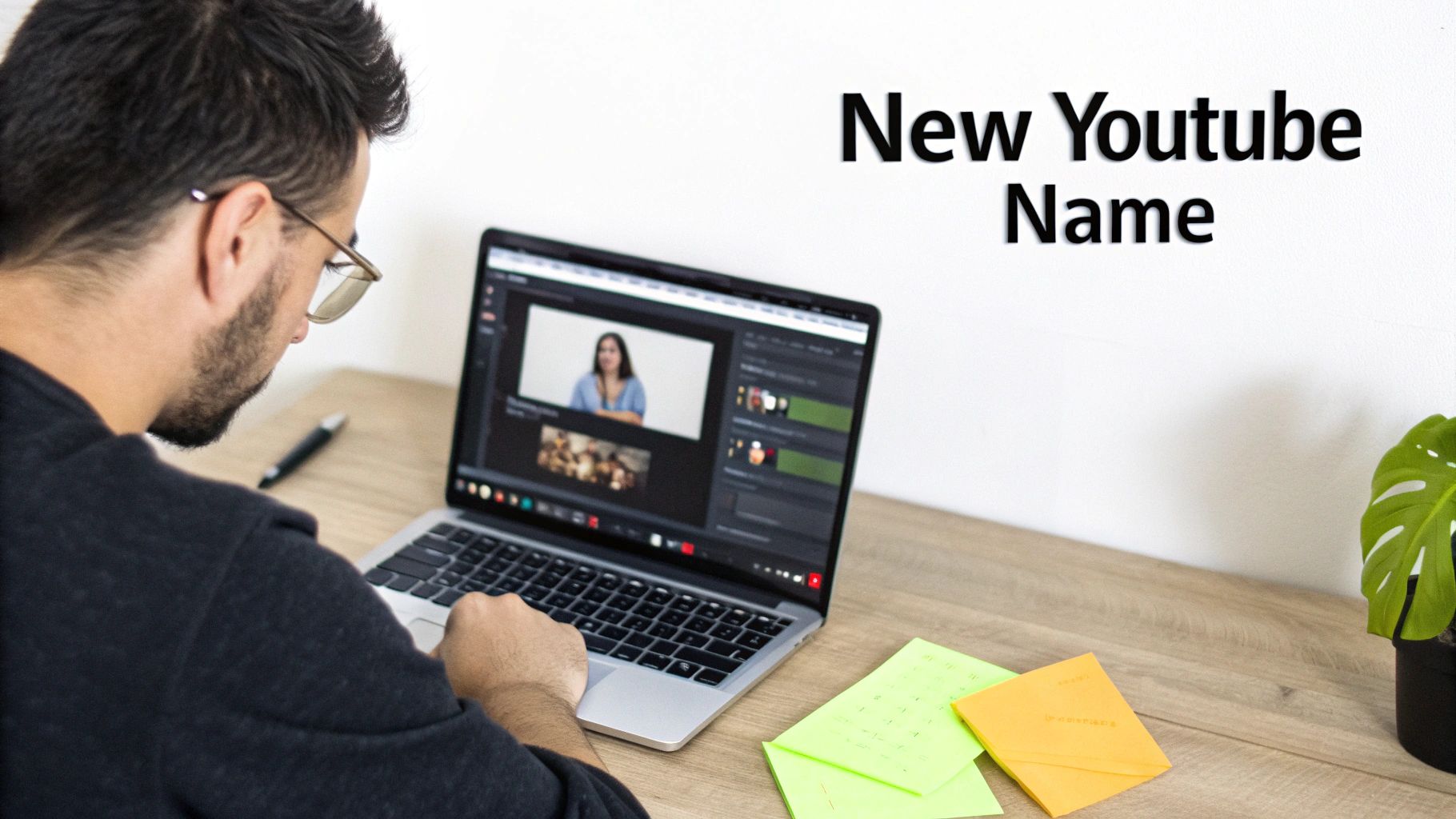
Think of this dashboard as mission control. That 'Customisation' tab is your key to changing your channel's public identity.
Making the Change to Your Name and Handle
You're in the 'Basic info' section now, and the first two fields you’ll see are Name and Handle. This is where you make the switch.
- Name: Click the little pencil icon right next to your current name ('Tim's Kitchen Adventures'). A box will pop up where you can type in your new choice: 'Global Gourmet with Tim'.
- Handle: Do the same for your handle. Click the pencil icon and change it to something that matches your new brand, maybe
@GlobalGourmetTim. YouTube will immediately tell you if that handle is already taken.
Now, here’s a crucial point: you can only change your name and handle twice every 14 days. This is a hard rule from YouTube to stop people from causing confusion or impersonating others. So, make sure you're happy with your new name before you hit save.
A mistake I see people make all the time is they fall in love with a new name without checking if the handle is available. Always check both at the same time. Nothing hurts your branding more than having a channel name that doesn't align with your @handle—it just makes you harder to find and remember.
Once you’ve typed in your new name and secured a matching handle, the last thing to do is click the blue Publish button up in the top-right corner. YouTube will apply the changes, and just like that, your channel has a new identity. The new name should show up on your channel page and next to your videos almost instantly.
Updating Your YouTube Identity on Mobile Devices
Let’s be honest, most of us run our channels from our phones as much as our desktops. Whether you've just had a flash of inspiration for a new brand name or you've spotted a typo, knowing how to update your YouTube identity on the fly is a must.
The process on the YouTube app is just as simple as on a computer, though the buttons are in slightly different places. It’s perfect for those moments when you can’t get to a laptop.
Imagine you've been running 'GadgetGeek' for a while. It was great, but now your focus has shifted to the environmental impact of technology. You want to rebrand to 'Sustainable Tech Today' to better connect with your new direction. This isn't just a simple name change; it's a strategic pivot. Let's walk through how to do it right from your phone.
Finding Your Way Through the YouTube App
First things first, fire up the YouTube app on your iOS or Android device. Double-check that you’re logged into the right account—it’s an easy mistake to make if you manage multiple channels.
From the app’s main screen, tap on your profile picture, which you’ll find in the bottom-right corner. This will take you to your personal hub.
Next, tap the View channel button, which sits just under your current name. You're now seeing your channel page as the public would. To get to the editing tools, look for the little pencil icon to the right, next to the 'Manage videos' button. Tap that, and you're in.
Making the Change to Your Name and Handle
You've landed on the 'Channel settings' screen. You'll see your Name and Handle listed, each with its own pencil icon ready for you to make the switch.
To change your channel name: Tap the pencil next to 'Name'. The field will show 'GadgetGeek'. Go ahead and type in 'Sustainable Tech Today' and hit Save.
To update your handle: Now, tap the pencil next to 'Handle'. You'll want to change your old handle (e.g.,
@GadgetGeekReviews) to something that matches, like@SustainableTechToday. The app checks for availability in real-time, so you’ll know instantly if it’s free.
A quick heads-up: The 14-day rule is still in effect on mobile. You can only change your name and handle twice every 14 days. YouTube does this to stop spammers and prevent confusion, so it pays to be absolutely sure of your new identity before you commit. Always double-check your spelling!
Once you've saved both changes, that’s it—you’re done. The update is immediate. Your channel will now proudly display 'Sustainable Tech Today' to every visitor, allowing you to get on with building your community around your fresh new brand, wherever you happen to be.
What Really Happens After You Change Your Name?
So you've hit 'Publish' on your new channel name. That's the easy part. The real work starts now, as the ripples of that change spread across your channel and how your audience sees you. Thinking through these effects beforehand can save you a lot of headaches and help you rebrand without losing your hard-earned momentum.
The first thing that often catches creators off guard is the disappearance of their verification badge. That little grey tick is more than just a status symbol; it's a mark of authenticity tied directly to your channel name. The moment you change your name, YouTube yanks that badge.
Don't panic—it's not gone forever. But you will have to reapply for it under your new name. You’ll still need to meet the usual criteria, like having at least 100,000 subscribers and proving your channel is the real deal. If you need a refresher on the process, we've got a full guide on how to get verified on YouTube.
Managing Your Digital Footprint
A common worry is about all those old links floating around the internet. What happens to them? Thankfully, YouTube has this sorted out.
When you change your YouTube username (your handle), the old URL (like youtube.com/@OldHandle) will automatically redirect to your new one. This is a massive relief, meaning links you’ve shared on social media or in old video descriptions won't suddenly break.
That said, you shouldn't rely on this redirect forever. Think of it as a safety net, not a long-term solution. The best move is to get proactive and update your links wherever you can—your website, social media bios, email signature, you name it. It just looks more professional and keeps your branding tight.
Taking control of your digital footprint is also a smart move for your channel's visibility. To make sure people can still find you after the switch, it's worth brushing up on YouTube SEO best practices.
Don't Leave Your Subscribers in the Dark
Your subscriber count won't change, but your audience might get a bit confused. They subscribed to a channel they knew, and if a new name pops up in their feed without any warning, they might just scroll right past. That initial confusion can definitely ding the views on your first few videos post-rebrand.
This is where clear communication is everything. The best creators turn this moment of change into a way to connect with their community.
Take the case of the popular gaming channel formerly known as 'Funhaus'. As the team evolved and the original founders departed, the channel rebranded to 'Inside Gaming' to better reflect its new direction and pay homage to its roots.
- They made announcement videos: The team explained the why behind the change, honouring the 'Funhaus' legacy while setting expectations for the 'Inside Gaming' era. This transparent approach helped retain their loyal audience.
- They used Community posts: They shared updates on the Community tab, ensuring subscribers who missed the video were still informed.
- They updated everything at once: New channel art, logos, and social profiles were rolled out simultaneously for a clean, professional transition.
By being open with their audience, the 'Inside Gaming' team managed a major brand shift smoothly, treating it as an evolution rather than an abrupt change. The takeaway is simple: tell your audience what's happening. Make them part of your channel's story.
How to Choose a New YouTube Name That Sticks
Picking a new channel name is more than just a quick update; it's a chance for a fresh start. Getting it right is crucial. A great name can pull in the perfect audience, but a confusing or forgettable one can stop your growth dead in its tracks. This isn't just about the technical steps—it’s about the strategy behind building an identity that lasts.
Think of your new name as a signpost. It should immediately tell people what they can expect from your videos. If you’ve recently switched your content to restoring vintage cameras, a name like 'Retro Reels' or 'Lens Legacy' instantly communicates your niche. It's clear, relevant, and makes people curious to see more.
Brainstorming a Brandable Name
Before you click that save button, take a moment to think about the long-term vision for your channel. The best names are memorable, easy to say, and even easier for people to find.
Here are a few principles I always come back to when brainstorming:
- Keep it simple and clean. Avoid weird spellings, hyphens, or a string of numbers. If you have to spell it out for someone to find you, it’s already too complicated.
- Make it relevant. Your name should give a clue about your content or the value you offer. This helps the right subscribers find you and know they're in the right place.
- Check availability everywhere. The perfect name is no good if someone else is already using it. You need to check if the name and its corresponding @handle are free on YouTube, but don't stop there. Look on Instagram, TikTok, and X (formerly Twitter) to ensure you can build a consistent brand across the board.
Remember, your YouTube name is a massive piece of your online identity. For more great advice on developing a strong personal brand on social media, this guide is a fantastic resource.
Weaving in Keywords for Discoverability
A really clever channel name is also optimised for search. By including a relevant term or two, you help your channel pop up when people are actively looking for your kind of content.
For instance, a channel called 'London Vegan Eats' is far more likely to appear in searches for "vegan food London" than something generic like 'Sarah's Food Channel'. It just makes sense.
This doesn’t mean you should cram keywords into your name where they don't belong. The goal is a natural blend of brand appeal and search-friendliness. A great first step is to research what your target audience is actually typing into the YouTube search bar. Nailing this balance makes it so much easier for new viewers to discover you. Our guide on how to find low-competition keywords can walk you through that process in more detail.
Think of your channel name as the title of a book. It needs to be catchy enough to make someone pick it up but also clear enough to tell them what the story is about. A great name achieves both, setting the stage for all the great content to come.
Got Questions About Changing Your YouTube Name?
Even after you've successfully rebranded, a few questions might still be bouncing around in your head. Changing your channel's identity is a big deal, so it's completely normal to want to be sure about all the little details. Let's clear up some of the most common things creators ask when they decide to change a YouTube username.
How Long Until My New Name Shows Up Everywhere?
On your main channel page, the new name and handle should pop up almost instantly. That’s the easy part.
However, seeing that change reflected across every corner of YouTube can take a bit longer. It might take a few hours, or in some cases up to a couple of days, for it to fully update in places like search results or your subscribers' feeds. Just be patient and give the system time to catch up.
Will I Lose Subscribers if I Change My YouTube Username?
Nope, you won't lose a single one. Your subscriber count, all your existing videos, comments, and playlists are all tied to your channel, not your name. They're perfectly safe.
The real risk isn't technical; it's about potentially confusing your audience.
The best rebrands I've seen always come with clear communication. Make a dedicated video or a pinned community post announcing the change. This keeps your viewers in the loop, avoids confusion, and makes them feel like they're part of your channel's journey.
What Happens to My Old YouTube Handle URL?
YouTube actually gives you a pretty good safety net here. For a while, your old handle URL (like youtube.com/@OldHandle) will automatically redirect to your new one. This is a lifesaver for preventing broken links right after you make the switch.
But don't rely on that redirect forever. You should make it a priority to update your channel links everywhere else you've posted them. Think about places like:
- Your social media bios (Instagram, X, TikTok)
- Your personal website or blog
- Any business cards or email signatures
Getting ahead of this ensures your branding is consistent and just makes everything look more professional and buttoned-up from the get-go.
Ready to stop guessing and start creating content that hits the mark? Vidito uses AI to generate dozens of data-backed video ideas, helping you find your next viral hit before you even press record. Discover what your audience is searching for and publish with confidence. Explore our tools at Vidito.ai.